
|
Soluling Cloud |
Soluling Cloud is a service that makes it possible to translate your Soluling projects into the cloud. You don't have to use Soluling Cloud to send translation packages to your translators, but using Soluling Cloud just makes it easier. You no longer need to send translation packages, and your translators do not need to install Soluling. To translate projects, translators can still use the Soluling desktop application, or they can use the Soluling browser application (Q4 2026). When using the browser application, multiple translators can work simultaneously with the same language. If you use the Soluling desktop, only one translator can work with the same language. As your translators are working on translations, you can keep developing your application.
If you use the manual localization process, then the process looks like this.
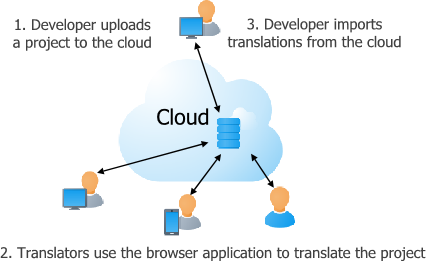
First, you use Soluling desktop or Soluling Web pages to create a project containing the files you want to localize. Then you use Soluling desktop or Soluling Web pages to upload the project to the cloud (1). Once the project is in the cloud, your translators can start translating it. They can either use Soluling desktop application or Soluling's web based Translate application. At any time you can import the current project with translations to your primary project in your machine and use it to build the localized files, or you can let Soluling Cloud to build the localized files and then download them.
Repeat this process each time a new string has introduced or something has changed in existing strings. You don’t have to wait to get translations back from translators. If you upload a new version of the project or source file, the Soluling cloud safely updates the current project with the new data. Translators working with the browser application will see the changes immediately. Translators working with the desktop application get notified and they can update their local copies in a single button click.
If you use a continuous localization process, then the process is very similar.
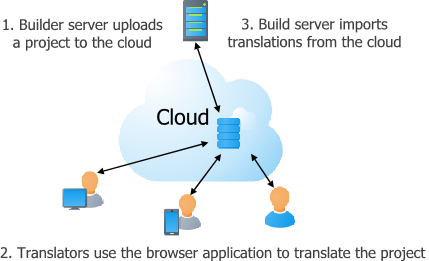
Now instead of interactively uploading and importing translations, the build process uses Soluling command-line application or Soluling API to push updated project to the cloud and to import translations or localized files. If building locally, the build server first imports the new and changes translations and them builds the localized files. If building in the cloud, the build server downloads the localized files from the cloud. The build server repeats this process each time new strings have introduced or existing ones have been changed.
The build server can be an on-premise build server, or a DevOps build service.
To use the cloud, you need to have an active cloud subscription. The first step is to upload your Soluling project to the cloud. Once the project has been uploaded, the owner can send any number of invitations to translate the project. This sends an invitation email to the translator. The email contains a link when the translator can accept the invitation and create a Soluling user account if he or she does not have an account.
Soluling provides several methods to create a cloud project.
| How to use Soluling | Operating system | Description |
|---|---|---|
| Use Soluling desktop application |
Windows | Click Translate | Configure Cloud ribbon button to open Configure Cloud dialog. |
| Use Soluling command-line application |
Windows | Use the SoluMake upload Sample.ntp |
| Use Soluling web pages | Any | Choose Project | Manage menu item and then upload either a Soluling project files (.ntp) or the files you want to localize. |
| Use Soluling REST API | Any |
Learn more about creating and building a cloud project.
Soluling provides two methods to translate a cloud project.
| How to use Soluling | Operating system | Description |
|---|---|---|
| Use Soluling
desktop application |
Windows | To open a cloud project, click Open project from cloud button on the main window. This shows the Open Cloud Project dialog that lets you first log in to Soluling cloud, and then list the projects that have been assigned to you through invitations. Select a project you want to work with and click OK. Now Soluling downloads the project from the cloud to a local file. Translate the project. Finally, upload the project back to the cloud by clicking Translate | Upload to Cloud button. |
| Use Soluling web application |
Any | Choose Project | Translate menu item and select the project you want to translate. |
| Use Soluling REST API | Any | You can also use Soluling REST API to translate the project. For exmaple you can integrate the translation feature to your application. |
Learn more about translating a cloud project.
Once you have translated your cloud project, you can build the localized files. The main method is to download translations from the cloud to your local machine (repo, development machine or DevOps build server). Another method is to let the cloud to build the localized files.
In this method you first download the project file (.ntp) from the cloud to your local machine. This machine can either be a developer's machine or a build server. You can use both the Soluling desktop application, or command line to download the file. Downloading means that Soluling Cloud first generates a Soluling project file that contains the most recent translations. Then this file is moved to the build machine where Soluling.exe or SoluMake.exe uses it when building the localized files.
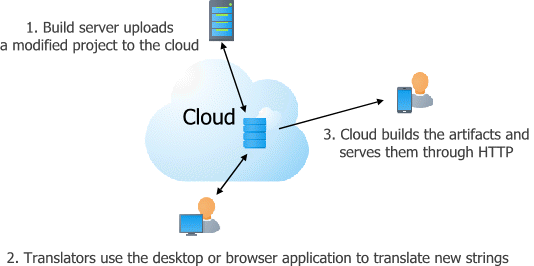
Another method is to let Soluling Cloud to build the localized files (artifacts). Each time new translations appear, Soluling Cloud will build the localized artifacts such as resource files and provides them through HTTP GET endpoint. You can either download the files or use them as Over-The-Air (OTA). When using OTA, your deployed application can get the most recent translations from this endpoint.
Learn more about artifact publishing and OTA.
You can use Soluling in multiple ways:
You can use desktop and command-line also standalone without any cloud plans.
Learn more about Soluling tools.
Most cloud-based localization services provide support for integrations with source code repositories (GitHub, GitLab, etc.). Soluling does not need this because you can integrate Soluling's command-line tool, SoluMake, into your DevOps pipeline. SoluMake is not just a thin CLI layer that sends instructions to the cloud service. SoluMake performs scanning and building locally on your machine and generates a Soluling project file (.ntp), which is then pushed to the cloud. The Soluling project file contains only the strings and their translations, along with context information. Because SoluMake can be used as part of your build pipeline, it has full access to the complete source code. This full access is needed for most .NET and Delphi projects. It also makes it possible to support development tool's project files in addition to individual resource files. Because you don't have to give the translation service any access to your repo, there is one less security risk.
 Copyright © 2016-2026 Soluling Oy