Dashboard
Dashboard is where you create and manage your Soluling Cloud projects from a browser - nothing to install. It signs you in automatically using your existing session on this site, so there's no separate login from the rest of soluling.com or from Translate.
Open Dashboard to see your project list, or read on for what you can do once you're there.
Using Dashboard needs the account to have a Soluling Cloud plan - including the free one.
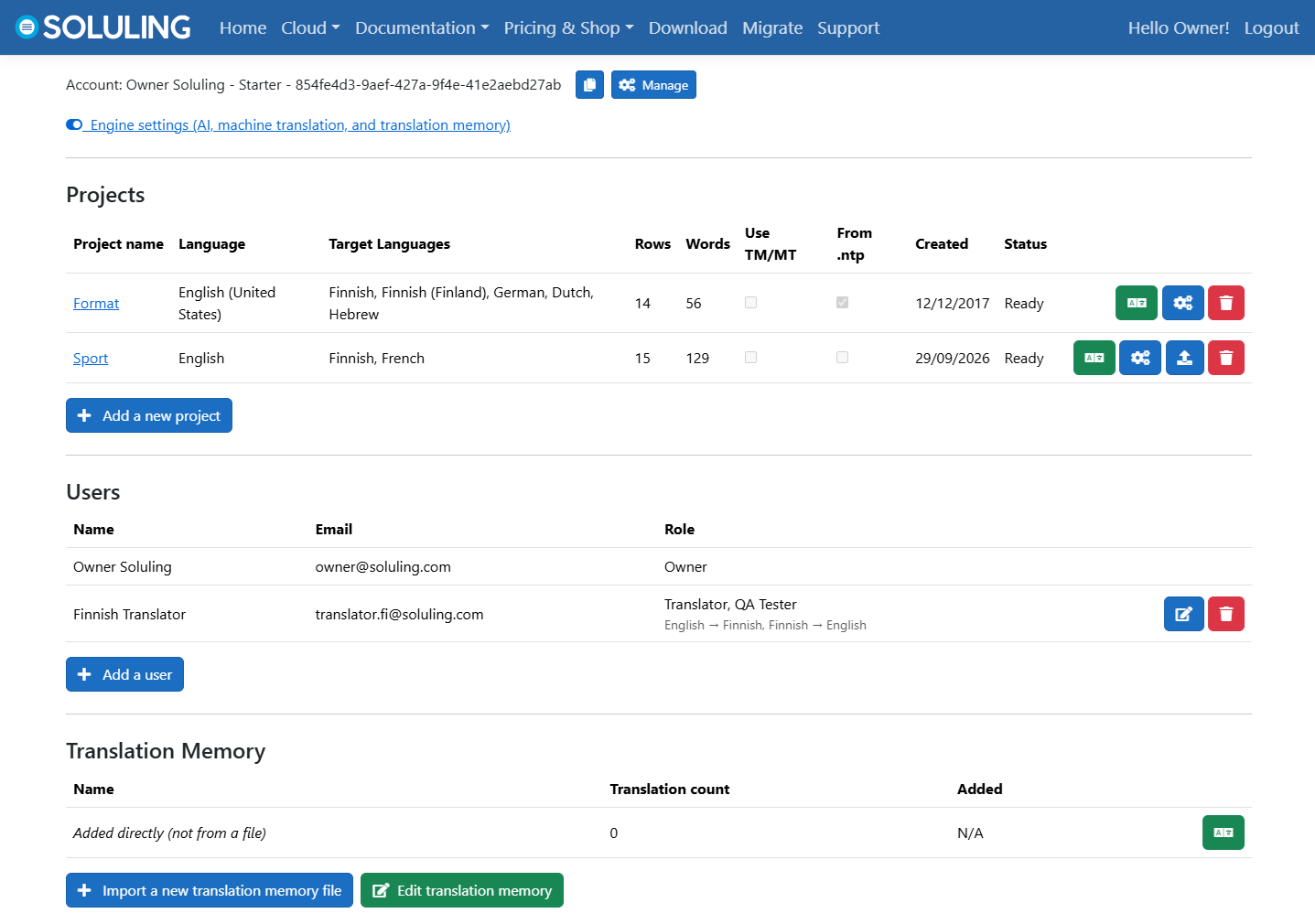
Your project list
The project list shows every cloud project you own or have been invited to, each with its own role. Opening a project takes you to its own Manage page, described below; from the list you can also jump straight to a project's Translate grid, or to its translation memory, terminology, and validation engine settings, without opening the project itself first.
Add Project creates a new one - upload a resource file, a
.ntp Soluling project file, or a source your build already produces, and Soluling
detects what it's looking at and sets up the project's source type for you.
Managing a project
A project's own Manage page is where its actual setup lives: its languages, its source files, and who's on the team.
-
Files - upload or replace a project's source file, import translations from a
translated copy of it, trigger a build, and download the project's built localized files or
its own
.ntpproject file. - Languages - add or remove the project's target languages, and see each language's translation progress and who's translating it.
- Team - invite translators and other project admins, and manage their roles.
- Automatic translation - choose whether machine translation runs only when you click Auto translate now, or automatically every time the project's file is updated or a translation is imported.
- Publish artifacts - makes the project's built localized files available for anonymous OTA delivery, so your app can fetch them directly at runtime.
See Cloud Tools for how Dashboard fits together with Translate, SoluMake, SoluCLI, and the REST API, and Workflows for ways to combine them for your team.