Workflows
Soluling is not one fixed pipeline - the desktop application, the browser (Dashboard for the project itself, and Translate for translating), the SoluMake command-line tool, the SoluCLI command-line tool, and the REST API can all work against the same project, so you can mix and match them to fit your team. The desktop application and SoluMake can also work purely locally, on a project that lives only on your own machine or build server and never touches the cloud at all - the browser, Translate, SoluCLI, and the REST API are the ones that need a project in the cloud, since that's what they talk to. See Cloud Tools for what each of these actually is; this page is about how they combine into a working setup.
- Use desktop only
- Use desktop and SoluMake
- Use browser and web translate
- Use SoluCLI or REST API and web translate
- Use SoluMake and web translate
- Use desktop, SoluMake and web translate
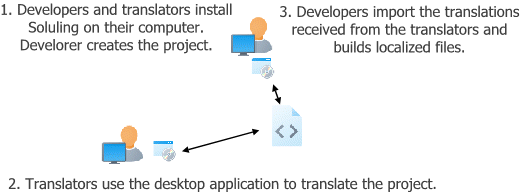
Use desktop only
The simplest setup: everything happens in the desktop application - scanning sources, translating, running machine translation and spell checking, and building the localized output - with nothing in the cloud at all. This suits a single translator or a small team working from the same project file, and it's the only workflow that needs no internet connection once the software is installed.
Use desktop and SoluMake
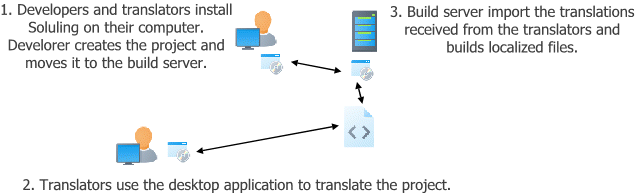
The desktop application stays the primary tool for translation work, while SoluMake takes over the repetitive, automatable steps - scanning sources and building localized output - from a build server or CI/CD pipeline. The translator's project doesn't have to be the same project SoluMake builds from: SoluMake can import the translations from the translator's project into its own before building. Because SoluMake runs entirely on your own machine, your source files never have to leave your build server.
Use browser and web translate
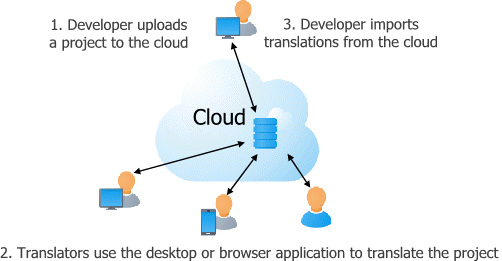
Everything happens in the browser, with nothing to install: a project manager sets up and manages the project through Dashboard, and translators work from Translate. No wiring up the REST API or the command line - Dashboard and Translate sign in with the same account as this site, so there's no separate login to manage either.
Use SoluCLI or API and web translate
Project management and automation go through SoluCLI or the REST API directly - creating projects, pushing source files, pulling built output - so the whole pipeline can be driven from your own systems without anyone opening the desktop application. Translators still work by hand, in the browser, through Translate. This suits teams that already have their own tooling around source control and builds, and only need Soluling for the translation step itself and the plumbing around it.
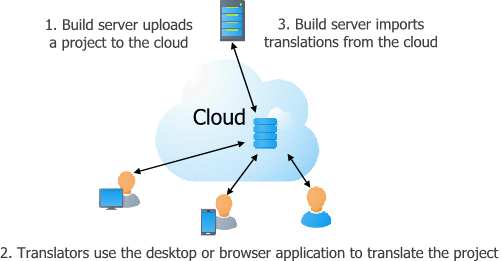
See the Cloud tutorial for a hands-on walkthrough of this workflow.
Like the desktop, SoluMake and web translate workflow further below, this is a fully automated, continuous localization process - but because it doesn't go through the desktop application's own project setup, it misses out on that same fine-grained control over scanning and building, and it doesn't support the more complex file formats, such as compiled binaries and .NET project files.
Use SoluMake and web translate
SoluMake, run from a build server or CI/CD pipeline, handles scanning and building, while translators work by hand in the browser through Translate. Like the API workflow above, nobody needs the desktop application installed - the difference is that SoluMake keeps your source files on your own build server instead of pushing them to the Soluling cloud.
This is a fully automated, continuous localization process too, and because SoluMake works from a real Soluling project file, it supports the full range of file formats Soluling supports - but without the desktop application to configure that project in, you lose the fine-grained, wizard-driven setup for how files are scanned and built. SoluMake is a Windows-only tool, so this workflow needs your build server or CI/CD pipeline to run on Windows too.
Use desktop, SoluMake and web translate
A project lead uses the desktop application to configure the project - setting up formats, languages, and everything else the project needs. From there, SoluMake, run from a build server or CI/CD pipeline, takes over scanning source changes and building the localized output as the source evolves, so nobody has to repeat that setup by hand. Translators do their work separately, in the browser, through Translate. It's a natural fit for a team where one person owns the project setup and build automation, and translation is handled by others who never need to touch the desktop application at all.
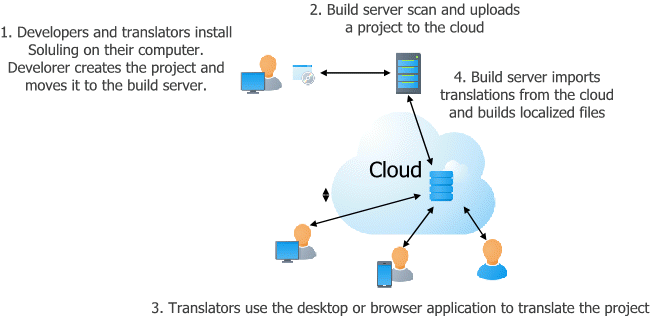
This is a fully automated, continuous localization process: every build picks up whatever's changed since the last one and whatever's been translated since the last one, with no manual step in between - and because it's built on the desktop application's own project setup, it works with the full range of file formats Soluling supports, with the same fine-grained control over how files are scanned and how the localized files are built that you get configuring the project in the desktop application itself. As with any workflow using SoluMake, this needs your build server or CI/CD pipeline to run on Windows.
Compare workflows
| Feature | Desktop only |
Desktop + SoluMake |
Browser + web translate | CLI or API + web translate | SoluMake + web translate |
Desktop + SoluMake + web translate |
|---|---|---|---|---|---|---|
| Automated, continuous localization |
||||||
| Full control over what's scanned and how output is built |
||||||
| Visual editors | ||||||
| Installation needed | Desktop application | Desktop application + SoluMake | None | None | SoluMake, on the build server None for translators |
Desktop application + SoluMake None for translators |
| Automated builds | ||||||
| Operating system needed | Windows | Windows | Any | Any | Windows | Windows |
Visual editors and full, wizard-driven control over scanning and building are desktop application features - in the desktop, SoluMake and web translate workflow, that means the project lead who configures the project has them, not the translators working through Translate.