Translate
Translate is a standalone, browser-based version of Soluling's translation grid - the same editing experience as the desktop application, with nothing to install. It signs you in automatically using your existing session on this site, so there's no separate login from the rest of soluling.com or from Dashboard.
Open Translate to see your project list, or jump straight into a project from its own Manage page in Dashboard.
Using Translate needs either a Soluling Cloud plan on the account, or an invitation to a project on an account that has one.
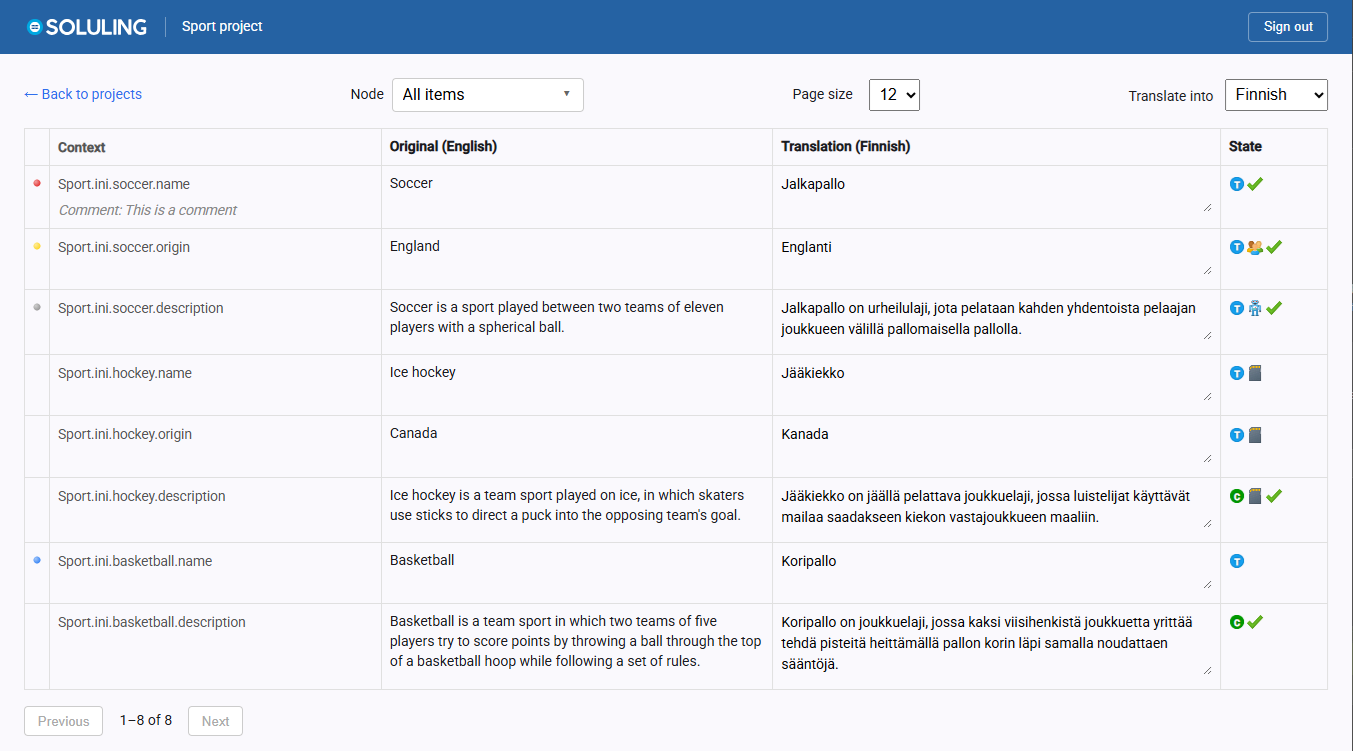
The translation grid
Each row is one string to translate, shown alongside its context and its original-language text. Cells for patterned or formatted text - such as printf-style placeholders, HTML tags, and Qt escapes - render their placeholders as coloured chips instead of raw markup, so what's safe to translate around is obvious at a glance. Double-clicking the Context, Original, or Translation column header resets all three back to an even width.
Suggestions and validation
As you translate, Soluling suggests translations from translation memory, machine translation, and project terminology, and checks each translation with AI-powered validation - catching things like a missing placeholder or a term translated inconsistently with the rest of the project. A flagged issue that isn't actually a problem for a given string can be dismissed with its own Ignore button, without changing the translation itself.
Toolbar and settings
The toolbar covers page size, a filter panel for narrowing down which rows are shown, and two switches: Live validation (validate as you type, rather than only after saving) and Confirm auto translation (require a translator to confirm a machine or memory suggestion before it counts as translated). These, along with your chosen page size and language, are remembered between sessions in your browser, so Translate reopens the way you left it. On a narrow window, the less-used settings collapse behind a single Settings button rather than wrapping onto a second line.
Keyboard shortcuts
Translate is built for keyboard-driven work: paging between rows with Page Up/Page Down, moving between cells, applying a suggestion, and more. The full, current list is always available from the Shortcuts button in Translate's own toolbar.
See Cloud Tools for how Translate fits together with Dashboard, SoluMake, SoluCLI, and the REST API, and Workflows for ways to combine them for your team.