In-context editing in web applications
In-context editing lets a translator or a reviewer work in your running web application. They click a text on the page, the Soluling editor opens next to it, and after they save, the page shows the new translation in place. They see each translation where it is used, with its real length, next to the texts around it.
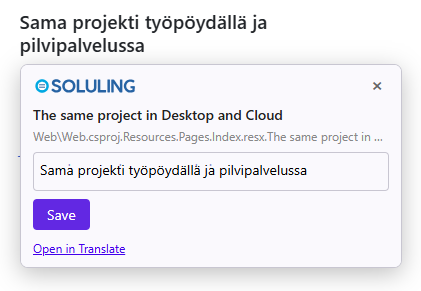
- No changes to your code. Many in-context tools need a library in your application that outputs special markers, and they work only with the internationalization libraries they support. Soluling marks the strings when it builds your localized files, so you add one script tag and nothing else. It works with any format Soluling builds whose texts end up in the browser -
.resx, JSON, gettext, and the others - also for server-rendered pages and compiled resources. - Safe on your site. The editor appears only on the sites you list in the project's In-context editing sites setting; on any other site the browser refuses to show it. The translator signs in on soluling.com, never on your page, and the editor gets a sign-in that is valid for this one project, only for translating, and for an hour.
How it works
- A special build writes the string id of each row after its translation, as invisible characters. The page looks the same.
- A small script on your pages finds those ids. In edit mode, a click on a translated text opens the Soluling editor in a panel next to it, with the original, its comment, and its length limit, if the site is one of the project's in-context editing sites.
- The first time, the translator signs in to Soluling in a small window of soluling.com. The editor then shows the string in the language of the page.
- When the translator saves, the page shows the new translation in place.
What you need
- A Soluling Cloud project for your application. The script finds the strings by the project's GUID, which is shown on the project's Manage Project page.
- A service plan that includes in-context editing.
- The sites where you review, in the project's In-context editing sites, for example
https://staging.example.com. Only these sites can show the editor. You don't have to list them beforehand: the first time you click a text on a new site, the string opens in Translate, which asks a project admin to Allow the site with one click. The developer's own machine (localhost) is always allowed. You can review and remove the sites on the project's Manage Project page. - A web application, or any other application whose texts are shown in a browser.
1. Build with hidden ids
Build the localized files of the staging environment with hidden ids, in the cloud with SoluCLI, or with Soluling Desktop or SoluMake. See Build with hidden ids.
2. Add the script to your pages
Add this to the pages of the staging build, for example in your main layout, before the closing </body> tag:
<script src="https://www.soluling.com/js/incontext.js"
        data-project="1b6e2f0a-4c2d-4e9a-9f1a-example-guid"
        data-language="fi"></script>
| Attribute | Value |
|---|---|
data-project |
Required. The GUID of the cloud project. |
data-language |
The language the page is shown in, for example fi. The editor shows the string in that language. By default, the lang attribute of the page's <html> element. |
data-translate-url |
Where Translate is. By default https://www.soluling.com/translate. |
data-chars |
The four zero-width characters of the project's build options, as hex codes, if you changed them. By default 200C,200D,202C,202D. |
data-editor |
panel, the default: the editor opens next to the text. tab: the string opens in Translate, in a tab of its own. |
The script does not change your page's own elements, styles, or event handlers, and it works with texts that a single-page application draws later.
3. Translate on the page
- Click Soluling at the bottom right of the page to turn edit mode on. The texts you can translate are highlighted when you point at them, and a click no longer follows links or presses buttons. Esc closes the editor, and then turns edit mode off.
- Without edit mode, hold Alt and click a text.
- If an element has several strings, for example a text and its tooltip, a menu asks which one you want.
- The editor opens next to the text. The first time, click Sign in to Soluling: a small window of soluling.com signs you in, or uses your session if you are already signed in, and closes. The sign-in lasts an hour, or until you reload the page.
- Type the translation and click Save, or press Ctrl+Enter. The page shows the new text at once. Click another text to translate it in the same editor.
- Open in Translate opens the string in Translate, with translation memory and machine translation suggestions, in a tab of its own. Strings with plural forms are translated there.
The editor shows:
- Your name at the top, so you see who is signed in. × or Esc closes the editor.
- The original text, in bold, and its comment from your source code, if it has one.
- Where the string comes from: its file and its id in the project.
- The translation, checked as you type by Soluling's spell checker with the project's own dictionaries. Click an underlined word to see suggestions.
- If the string has a length limit, how many characters the translation has of it. The count turns red when the translation is too long.
When the translation reaches the application
The new text on the page is shown by the script, only in the browser where it was saved, and only until the page is reloaded. The translation itself is saved in the project at once, like any other. The application shows it after its next build and deployment. If your application loads its localized files at runtime, OTA delivery can bring it in without a new release.
A translation that has HTML tags or placeholders, such as {0} or %s, is not shown on the page this way, because the application draws it from more than the text. It shows after the application is rebuilt. The same goes for a single form of a plural.
What can be clicked
- Texts in the page, and the
title,placeholder,alt, andaria-labelattributes, and the text of input buttons. - Not texts that are not on the page: the page title, alert boxes, and texts drawn on a canvas.
- Not texts in the original language, which are not built from the project. Open the page in one of the target languages.
- Not texts your code builds from several strings, if it changes or removes the parts.
Use the in-context build only for translating and reviewing, never in production. See Keep it out of production.
Security
- The script sends nothing anywhere and needs no credentials. It only opens the editor, with the project's GUID and the string id in the address.
- The editor can be shown only on the project's in-context editing sites. On any other site the browser refuses it, and the script opens the string in a Translate tab instead.
- The translator never types a password on your page: they sign in in a window of soluling.com. The editor then gets a sign-in that is valid for this project only, only for translating, and for an hour.
- A saved translation is sent back only to the page that opened the editor.